3. Import the HTML asset
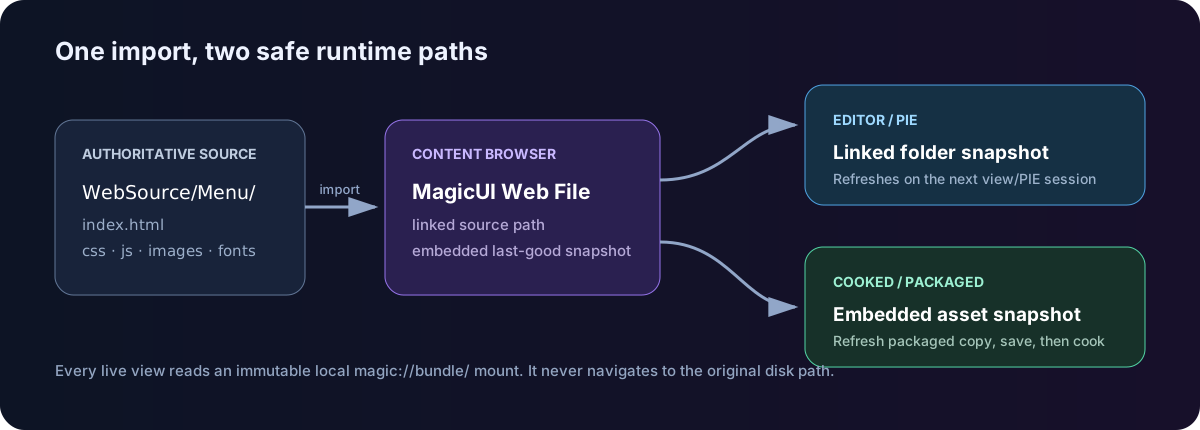
EngawaUI's recommended content path starts with an Unreal asset. Importing the entry HTML creates an EngawaUI Web File that remembers the source file and stores a cookable snapshot of its supported sibling resources.
Import index.html
- Return to Unreal Editor and make sure Play In Editor is stopped.
- In the Content Browser, create
/Game/EngawaUI/Web. - Open your file manager at
WebSource/GettingStarted. - Drag
index.htmlinto/Game/EngawaUI/Web. - Wait for the import to finish.
- Optionally rename the imported asset to
EWA_GettingStarted, usingEWAas your project's shorthand for EngawaUI Web Asset. The plugin does not require this prefix.
Importing on Linux
Drag and drop may not work on Linux. If it does not, click Import in
the Content Browser and select index.html.
The asset type should read EngawaUI Web File. It is not a generic File Media Source, Text asset, or Unreal Web Browser asset.
Inspect the linked source
Double-click the asset. Its custom Details view shows:
| Field or action | What it means |
|---|---|
| Source File | The external index.html linked to this Unreal asset. |
| Status | Exists when Unreal can still find that source file. |
| External Editor | The application used by Open in External Editor. |
| Choose Editor… | Select VS Code, Rider, WebStorm, or another editor. |
| Use OS Default | Return to the operating system's file association. |
| Open in External Editor | Edit the authoritative file on disk. |
| Reveal in File Explorer | Locate the source file or its directory. |
| Refresh Packaged Copy | Update the embedded last-good snapshot used for cooking. |
The asset also tracks its source filename, type, and bundled file count. The first all-in-one example normally has one bundled file.
Understand what was imported
For an HTML entry asset, EngawaUI recursively collects supported files from the
HTML file's entire directory—not only files discovered by parsing <link> and
<script> tags. That is why each UI should have a clean source folder.
WebSource/GettingStarted/   ← one page-specific source root
├── index.html              ← imported entry point
├── css/main.css            ← bundled automatically
├── js/app.js               ← bundled automatically
└── images/icon.png         ← bundled automatically
The complete extension and limit table is in Supported content.
Use an imported asset for file-backed UI
The imported HTML EngawaUI Web File is the component's file-backed page source in Editor, PIE, and packaged builds. Import it during normal setup, not at packaging time.
Edit-and-test loop
Editor/PIE follows the linked source, but each play/view session receives an immutable snapshot. Use this loop:
- Stop PIE and make sure all live EngawaUI views are gone.
- Edit and save HTML, CSS, JavaScript, images, or fonts on disk;
- start PIE again; and
- use Refresh Packaged Copy, then save the Unreal asset before a cook or source-control handoff.
Reload reloads the current session's page. It cannot replace that session's
frozen source bundle with a newly edited folder digest. Stop and start PIE for
source changes.
If the linked file moves
Use the Content Browser's standard Reimport With New File action and select the new entry file. Confirm the custom Details panel reports Status: Exists, refresh the packaged copy, and save the asset.