Build a Vue interface
Use Vue and Vite to author an EngawaUI screen, then build it as one self-contained HTML file. The finished file can be imported directly as a EngawaUI Web File and does not need a web server at runtime.
This example has two small routes, uses Bootstrap for basic layout, and uses registered Gameplay Tag events to communicate with Unreal in both directions.
Before you begin
Install Node.js 24 or newer. Node includes the npm command used below. You
also need an Engawa UI Component ready to receive an imported HTML asset. If
you have not created one yet, complete
Render your first screen first.
Create the project files
Create a folder for the Vue source outside Unreal's Content directory. For
example:
<Project>/WebSource/EngawaUIVue/
├── package.json
├── tsconfig.json
├── vite.config.ts
├── ui.html
└── src/
    ├── App.vue
    ├── main.ts
    ├── pages/
    │   ├── GameHud.vue
    │   └── MainMenu.vue
    ├── services/
    │   └── engawaUIState.ts
    └── router/
        └── index.ts
The filenames in this guide are important. In particular, ui.html is the
Vite entry page and becomes dist/ui.html after the build.
Add package.json
Create package.json in EngawaUIVue:
{
  "name": "engawaui-vue-ui",
  "version": "1.0.0",
  "private": true,
  "type": "module",
  "scripts": {
    "dev": "vite --host 127.0.0.1 --open /ui.html",
    "type-check": "vue-tsc --noEmit",
    "build": "npm run type-check && vite build",
    "preview": "vite preview --host 127.0.0.1"
  },
  "dependencies": {
    "@studiouwu/engawa": "^2.0.0",
    "bootstrap": "5.3.8",
    "vue": "^3.5.41",
    "vue-router": "^4.6.4"
  },
  "devDependencies": {
    "@types/node": "^26.2.0",
    "@vitejs/plugin-vue": "^6.0.8",
    "typescript": "5.9.3",
    "vite": "^8.2.1",
    "vite-plugin-singlefile": "^2.3.3",
    "vue-tsc": "^3.3.9"
  }
}
The build script checks the TypeScript and Vue files before Vite creates the
runtime page. Bootstrap and @studiouwu/engawa are installed locally instead
of loaded from a CDN. vite-plugin-singlefile then places Bootstrap's CSS, the
EngawaUI event facade, the Vue runtime, Vue Router, and the application code
inside one HTML file. The Engawa package supplies its own TypeScript
declarations, so this project does not need a custom Engawa .d.ts file.
Add tsconfig.json
Create tsconfig.json:
{
  "compilerOptions": {
    "target": "ES2017",
    "useDefineForClassFields": true,
    "module": "ESNext",
    "moduleResolution": "Bundler",
    "baseUrl": ".",
    "paths": {
      "@/*": ["src/*"]
    },
    "lib": ["ES2017", "DOM", "DOM.Iterable"],
    "allowImportingTsExtensions": false,
    "resolveJsonModule": true,
    "isolatedModules": true,
    "verbatimModuleSyntax": true,
    "esModuleInterop": true,
    "strict": true,
    "skipLibCheck": true,
    "noEmit": true,
    "jsx": "preserve",
    "types": ["vite/client", "node"]
  },
  "include": ["src/**/*.ts", "src/**/*.tsx", "src/**/*.vue", "vite.config.ts"]
}
This configuration type-checks Vue single-file components, browser APIs, and
vite.config.ts. The @/ alias points to src/; the same alias is configured
in Vite next.
Add vite.config.ts
Create vite.config.ts:
import { fileURLToPath, URL } from 'node:url'

import vue from '@vitejs/plugin-vue'
import { defineConfig } from 'vite'
import { viteSingleFile } from 'vite-plugin-singlefile'

export default defineConfig({
  base: './',
  plugins: [
    vue(),
    viteSingleFile({
      removeViteModuleLoader: true,
    }),
  ],
  resolve: {
    alias: {
      '@': fileURLToPath(new URL('./src', import.meta.url)),
    },
  },
  build: {
    target: ['es2017', 'safari16.4'],
    cssTarget: 'safari16.4',
    outDir: 'dist',
    emptyOutDir: true,
    sourcemap: false,
    rollupOptions: {
      input: fileURLToPath(new URL('./ui.html', import.meta.url)),
    },
  },
})
These settings do the EngawaUI-facing build work:
base: './'keeps generated URLs relative to the HTML page.viteSingleFile()inlines the application code and styles.rollupOptions.inputmakesui.htmlthe entry page.targetandcssTargetkeep the output compatible with EngawaUI's browser baseline.outDirplaces the finished page indistandemptyOutDirremoves the previous build before creating a new one.
Add ui.html
Create ui.html in the project root:
<!doctype html>
<html lang="en">
  <head>
    <meta charset="UTF-8" />
    <meta name="viewport" content="width=device-width, initial-scale=1.0" />
    <meta name="color-scheme" content="dark" />
    <title>EngawaUI Vue example</title>
  </head>
  <body class="bg-dark text-light">
    <div id="app">Loading...</div>
    <script type="module" src="/src/main.ts"></script>
  </body>
</html>
Vite uses the absolute /src/main.ts path while running its development
server. During a production build, the single-file plugin replaces this with
the compiled application inside dist/ui.html.
Add the application entry
Create src/main.ts to load Bootstrap, start the router, and mount the Vue
application:
import 'bootstrap/dist/css/bootstrap.min.css'

import { createApp } from 'vue'

import App from '@/App.vue'
import router from '@/router'

async function startApplication(): Promise<void> {
  await router.replace({ name: 'MainMenu' })
  await router.isReady()

  createApp(App).use(router).mount('#app')
}

void startApplication()
Bootstrap's CSS is imported from the installed package, so Vite can include it in the self-contained build. The application selects the main menu before it mounts, which gives the memory router a known first route.
Add the router
Create src/router/index.ts:
import { createMemoryHistory, createRouter } from 'vue-router'

import GameHud from '@/pages/GameHud.vue'
import MainMenu from '@/pages/MainMenu.vue'

export default createRouter({
  history: createMemoryHistory(),
  routes: [
    {
      path: '/',
      name: 'MainMenu',
      component: MainMenu,
    },
    {
      path: '/hud',
      name: 'GameHud',
      component: GameHud,
    },
  ],
})
createMemoryHistory() keeps the active route in memory. Use it for EngawaUI
instead of web history: the page runs from a local bundle rather than an HTTP
server, and its internal route does not need to change the browser URL.
Add the application shell
Create src/App.vue:
<script setup lang="ts">
import { RouterLink, RouterView } from 'vue-router'
</script>

<template>
  <div class="container-fluid min-vh-100 p-3 p-md-4 p-lg-5">
    <header
      class="d-flex flex-column flex-sm-row gap-3 justify-content-between
             align-items-sm-center mb-4"
    >
      <h1 class="h3 mb-0">EngawaUI + Vue</h1>

      <nav class="nav nav-pills gap-2" aria-label="Example pages">
        <RouterLink
          class="nav-link"
          active-class="active"
          :to="{ name: 'MainMenu' }"
        >
          Main menu
        </RouterLink>
        <RouterLink
          class="nav-link"
          active-class="active"
          :to="{ name: 'GameHud' }"
        >
          Game HUD
        </RouterLink>
      </nav>
    </header>

    <RouterView />
  </div>
</template>

<style>
html,
body,
#app {
  width: 100%;
  height: 100%;
  margin: 0;
}

body {
  font-family: system-ui, sans-serif;
}
</style>
RouterLink changes the active Vue route without loading another HTML page.
Bootstrap's container-fluid, flex, spacing, and breakpoint classes make the
header stack on narrow views and sit in one row when more width is available.
Add the routed pages
Create src/pages/MainMenu.vue:
<script setup lang="ts">
import Engawa, {
  isEngawaRuntimeAvailable,
} from '@studiouwu/engawa'
import { ref } from 'vue'

const status = ref('Ready')

function notifyUnreal(): void {
  if (!isEngawaRuntimeAvailable()) {
    status.value = 'Browser preview: the EngawaUI runtime is not available'
    return
  }

  try {
    Engawa.gameplayTags.emit('UI.Menu.Notify.Clicked', {
      text: 'Hello from Vue',
    })
    status.value = 'Gameplay Tag event posted to EngawaUI'
  } catch (error) {
    status.value = `Send failed: ${String(error)}`
  }
}
</script>

<template>
  <main class="row g-4 align-items-center">
    <section class="col-12 col-lg-7">
      <p class="text-uppercase text-info fw-semibold mb-2">Main menu</p>
      <h2 class="display-5 fw-bold">A responsive Vue screen</h2>
      <p class="lead text-white-50">
        This content fills the available width and stacks on smaller views.
      </p>
      <button class="btn btn-primary btn-lg" type="button" @click="notifyUnreal">
        Notify Unreal
      </button>
      <p class="alert alert-secondary mt-3 mb-0" role="status">
        {{ status }}
      </p>
    </section>

    <aside class="col-12 col-lg-5">
      <div class="card text-bg-dark border-secondary">
        <div class="card-body p-4">
          <h3 class="h5 card-title">Bootstrap layout</h3>
          <p class="card-text mb-0">
            This card moves beside the menu at the large breakpoint.
          </p>
        </div>
      </div>
    </aside>
  </main>
</template>
Create src/pages/GameHud.vue:
<template>
  <main>
    <p class="text-uppercase text-info fw-semibold mb-2">Game HUD</p>
    <h2 class="h4 mb-4">Player status</h2>

    <div class="row g-3">
      <section class="col-12 col-md-8">
        <div class="card text-bg-dark border-secondary h-100">
          <div class="card-body">
            <h3 class="h6 text-white-50">Health</h3>
            <div
              class="progress"
              role="progressbar"
              aria-label="Player health"
              aria-valuenow="82"
              aria-valuemin="0"
              aria-valuemax="100"
            >
              <div class="progress-bar bg-success" style="width: 82%">82%</div>
            </div>
          </div>
        </div>
      </section>

      <section class="col-12 col-md-4">
        <div class="card text-bg-primary h-100">
          <div class="card-body">
            <h3 class="h6">Score</h3>
            <p class="display-6 mb-0">1,250</p>
          </div>
        </div>
      </section>
    </div>
  </main>
</template>
The grid uses full-width columns on narrow views and splits them at Bootstrap's
md and lg breakpoints. No Bootstrap JavaScript is needed for these layout
and component classes.
The package is present in both browser preview and the production bundle, but a
normal browser does not provide the native EngawaUI runtime.
isEngawaRuntimeAvailable() detects that situation so Notify Unreal can
show a useful preview message. Inside Unreal,
Engawa.gameplayTags.emit() sends the registered tag to an EngawaUI Gameplay
Tag Event component.
Change the route from Unreal
Use the package in the other direction too. Add a small service that listens
for UI.Route.Changed on the Gameplay Tag channel, validates its payload, and
gives the route name to Vue Router.
Create src/services/engawaUIState.ts:
import Engawa from '@studiouwu/engawa'

export type UIState = 'MainMenu' | 'GameHud'

type UIStateListener = (state: UIState) => void

function isUIState(value: unknown): value is UIState {
  return value === 'MainMenu' || value === 'GameHud'
}

function readUIState(payload: unknown): UIState | null {
  if (
    typeof payload !== 'object' ||
    payload === null ||
    !('route' in payload)
  ) {
    return null
  }

  if (isUIState(payload.route)) {
    return payload.route
  }

  console.warn(
    '[EngawaUI Vue] route must be "MainMenu" or "GameHud".',
  )
  return null
}

export function listenForUIState(listener: UIStateListener): () => boolean {
  return Engawa.gameplayTags.addListener('UI.Route.Changed', (payload) => {
    const state = readUIState(payload)

    if (state !== null) {
      listener(state)
    }
  })
}
The package delivers only the matching Gameplay Tag event to this listener and returns a cleanup function. Because the package's built-in types allow any JSON payload, the runtime check narrows the received value to the two route names defined by the router.
Now update src/main.ts to start the listener and replace the active route:
import 'bootstrap/dist/css/bootstrap.min.css'

import { createApp } from 'vue'

import App from '@/App.vue'
import router from '@/router'
import { listenForUIState } from '@/services/engawaUIState'

async function startApplication(): Promise<void> {
  const initialNavigation = router.replace({ name: 'MainMenu' })

  const stopListening = listenForUIState((state) => {
    void router.replace({ name: state })
  })

  window.addEventListener('beforeunload', () => {
    stopListening()
  }, { once: true })

  await initialNavigation
  await router.isReady()

  createApp(App).use(router).mount('#app')
}

void startApplication()
The listener is registered before the function reaches its first await, so a
Gameplay Tag event emitted from Unreal's On Page Loaded handler cannot race
past the listener. The page starts on MainMenu. When Unreal sends GameHud,
the listener calls router.replace({ name: 'GameHud' }), and the Game HUD
page becomes visible without adding a browser-history entry.
Install and preview
Open a terminal in EngawaUIVue, then install the packages:
This also creates package-lock.json. Keep that file in source control so the
team installs the same resolved package versions.
Start the Vite development server:
Vite opens /ui.html in your normal browser. Resize the window to check the
responsive layout, and use Main menu and Game HUD to check both routes.
Select Notify Unreal to confirm that the Vue component is running; the
status explains that the EngawaUI runtime is unavailable in the browser
preview.
Build the EngawaUI page
Stop the development server, then run:
The type check must pass, and the build must create this file:
That one file contains Bootstrap's CSS, the EngawaUI event facade, the Vue
runtime, Vue Router, component code, and project CSS. Do not import the source
ui.html; it still points to /src/main.ts and expects Vite's development
server.
Register the Gameplay Tags in Unreal
Both directions use registered Gameplay Tags. Add them before building the Blueprint graph:
- Open Edit > Project Settings.
- Search for Gameplay Tags.
- Choose Manage Gameplay Tags, or use your project's configured tag source.
- Add these tags and save the settings:
The strings in the Vue code do not create Gameplay Tags in Unreal. Both tags must appear in a Gameplay Tag picker before the component can receive or emit them. Use the registered canonical spelling in JavaScript and Blueprint.
Import and test in Unreal
- Stop PIE.
- Drag
dist/ui.htmlinto the Unreal Content Browser. - Confirm that Unreal creates an EngawaUI Web File.
- Assign that asset to the Engawa UI Component's HTML Asset property.
- Open the Actor Blueprint that owns the Engawa UI Component.
- In the Components panel, add EngawaUI Gameplay Tag Event.
- Select
EngawaUIGameplayTagEvent. Under EngawaUI > Events, set Source Engawa UI Component to theEngawaUIComponentthat displays the imported asset. - Under Gameplay Tags To Listen For, add
UI.Menu.Notify.Clicked. - Under the component's Events, add On Gameplay Tag Event Received and the inherited On Event Error to the Event Graph.
- Connect On Gameplay Tag Event Received to diagnostics that print Event Tag and Json Payload. Connect On Event Error to a Print String node that prints Error.
The two components should be configured like this:
BP_EngawaUIVueHost
├── EngawaUIComponent
│     HTML Asset → ui
└── EngawaUIGameplayTagEvent
      Source Engawa UI Component → EngawaUIComponent
      Gameplay Tags To Listen For
      └── UI.Menu.Notify.Clicked
The source setting connects both directions of the Gameplay Tag channel to the page displayed by that Engawa UI Component. Setting it explicitly also avoids ambiguity if the Actor gains another view later. Gameplay Tags To Listen For is an exact incoming allowlist: an empty container receives nothing, and selecting a parent tag does not include its children.
Send a route Gameplay Tag event from Blueprint
Registering the Vue listener during page startup makes the source component's On Page Loaded event a safe place for the first Unreal-to-page send:
- Select the Engawa UI Component and add On Page Loaded from its Events section.
- Drag the
EngawaUIGameplayTagEventcomponent into the Event Graph. - Drag from it and add Emit Gameplay Tag Event.
- Connect On Page Loaded to Emit Gameplay Tag Event.
- Select
UI.Route.Changedin Event Tag. - Set Json Payload to this exact object:
- Connect the node's True and False execution outputs to diagnostic prints. Keep On Event Error connected too, because some preparation and queue errors can happen after the initial call returns.
- Compile and save the Blueprint.
The finished route graph should look like this:
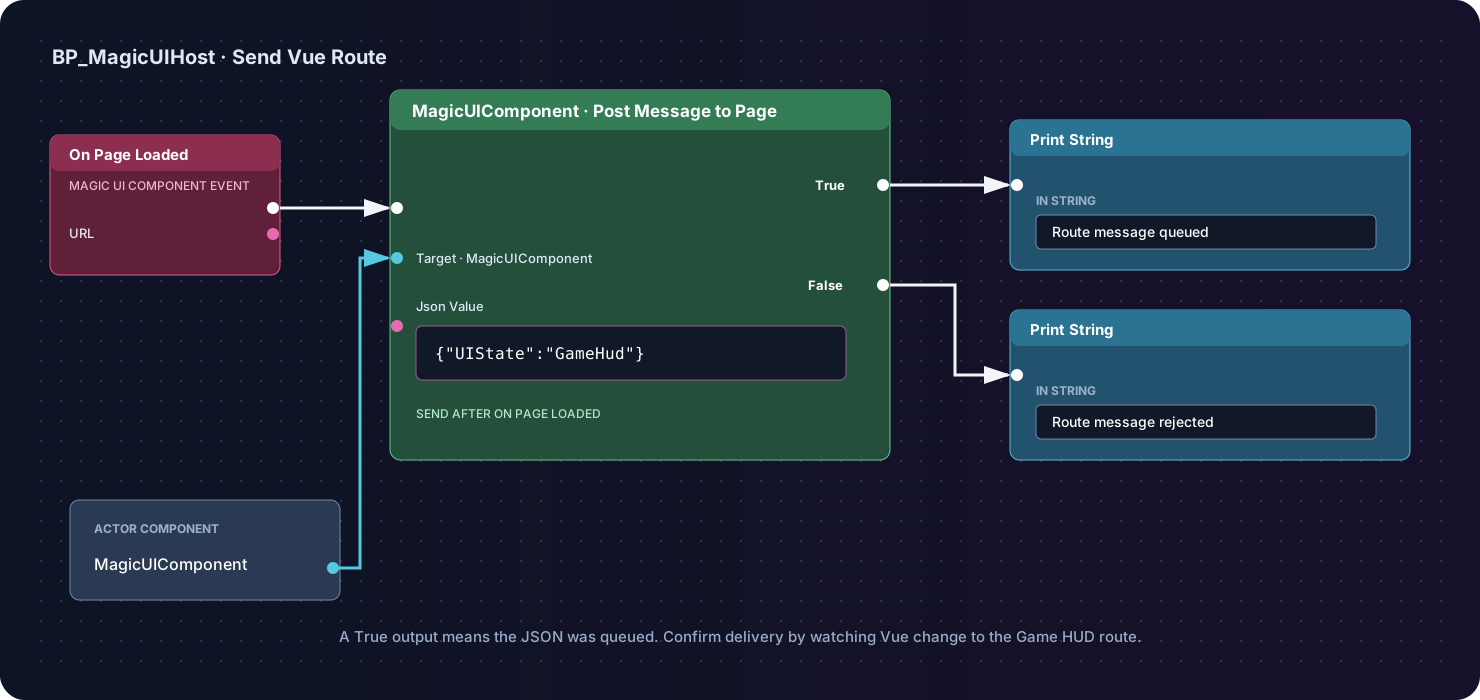
Start PIE. The interface should change from Main menu to Game HUD. The node's True output means the event was accepted for asynchronous preparation; the visible route change confirms that Vue received and handled it.
To return to the menu later, use the same Emit Gameplay Tag Event node from
an appropriate Blueprint event. Select UI.Route.Changed and use this payload:
Gameplay Tag matching is case-insensitive, but always use the registered
canonical spelling. The JSON key route and the values MainMenu and
GameHud are case-sensitive. Enter the payload as shown; do not wrap the whole
object in another pair of quotes.
The outgoing UI.Route.Changed tag must be registered, but it does not belong
in Gameplay Tags To Listen For. That container controls tags traveling from
JavaScript to Unreal. After On Page Loaded has fired, you can emit route
changes from other Blueprint events, such as opening a menu or entering a
gameplay state. When you add a route, also add its name to the Vue router, the
UIState type, and the isUIState check.
Send the button Gameplay Tag event to Blueprint
Select Main menu in the Vue navigation, then select Notify Unreal. This
runs the package call shown in MainMenu.vue:
The page changes its status to Gameplay Tag event posted to EngawaUI, and
the component's On Gameplay Tag Event Received fires with:
Use Gameplay Tag comparison or switch nodes to route the Blueprint logic, and parse Json Payload only in the handler that owns that tag. For listener filtering, payload rules, and delivery semantics, see Use Gameplay Tag events.
Rebuild after an edit
Each time you change the Vue source:
- run
npm run build; - stop PIE;
- reimport
dist/ui.html, or use Refresh Packaged Copy on its EngawaUI Web File asset; - save the Unreal asset; and
- start PIE again.
EngawaUI uses an immutable snapshot during a view session, so rebuilding the file while PIE is running does not update the active page. See Web assets and local content for the full edit and packaging workflow.